Creating and using a static library for the CAMsymbolic function class
This discussion and linked screen shots assumes the use of Visual Studion 2005 IDE. With suitable adaption, the procedure also works for the Eclipse IDE.
It is assumed that you have downloaded the CAMsymfun repository to a directory within your course solution directory. Specifically, you have a directory structure of a form similar to
           ====================
            157courseDirectory
           ====================
               |
               |--------------|---------------|------------------|
              =========     =========       ===========     ============
               Assign1       Assign2   ***   CAMsymfun       SymFunTest
              =========     =========       ===========     ============
- Creating a CAMsymfun project and building the static library CAMsymfun.lib.
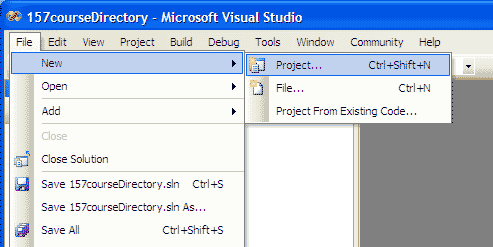
- Open your course solution and then select new project (screenshot).
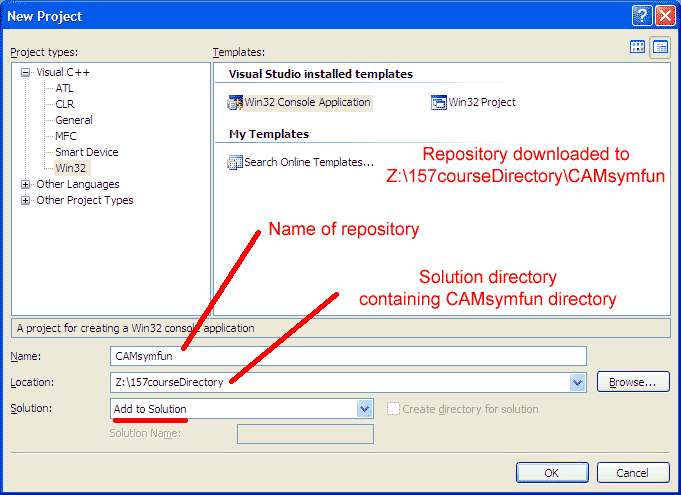
- Specify a Win32 console project named CAMsymfun and have it added to your solution (screenshot).
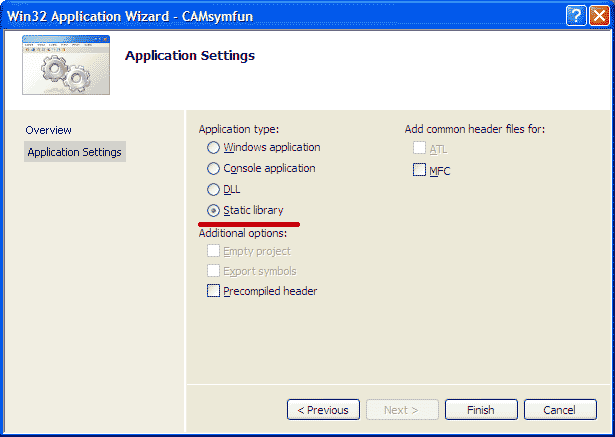
- Specify Static Library in the Application settings dialog (screenshot).
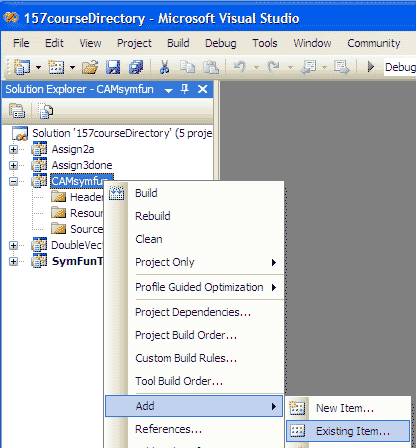
- Select project and then "Add Existing Item" (screenshot).
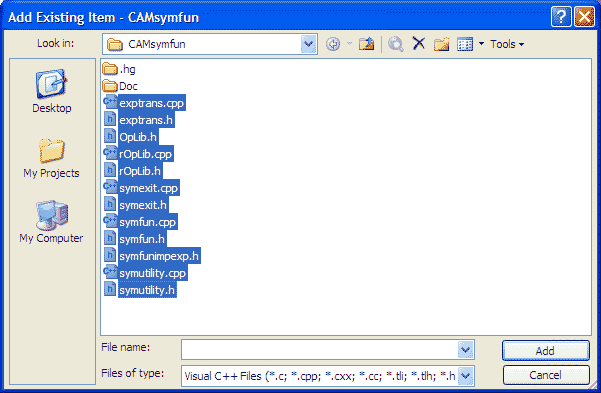
- Add CAMsymfun files (you can do multiple selection) (screenshot).
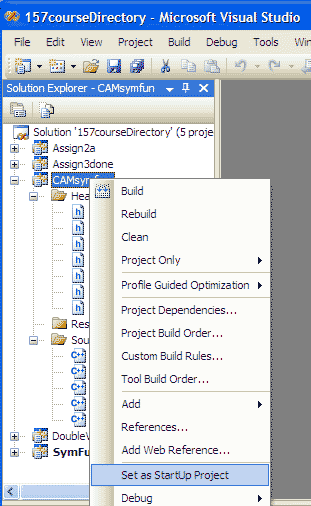
- Set the startup project as CAMsymfun (screenshot).
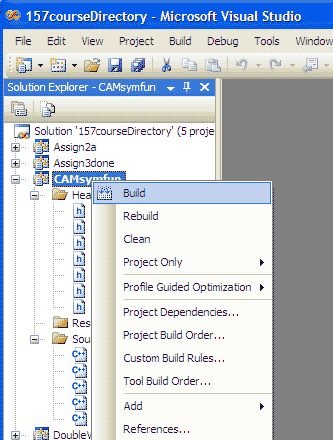
- Build the library (screenshot).
- The output of this process will be a library file CAMsymfun.lib.
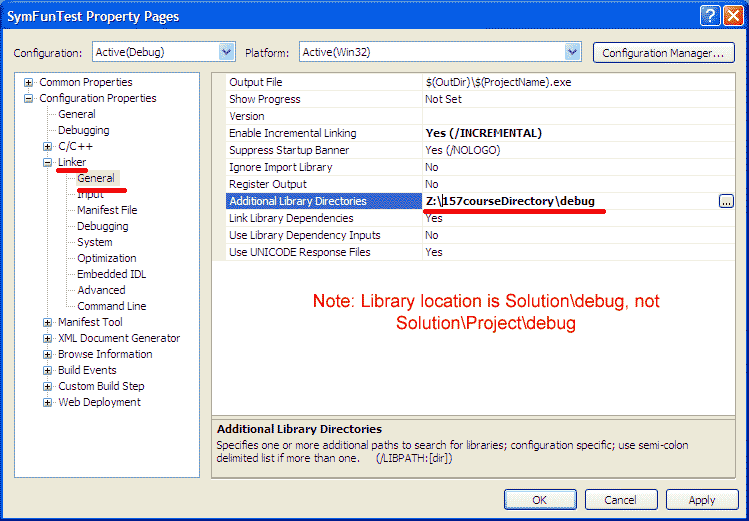
With the current default Visual Studio settings, the output is placed in SolutionDirectory/debug, not in SolutionDirectory/CAMsymfun/debug (e.g. a sub-directory of the project directory). This location may differ depending on the Visual Studio installation -- so you may have to search for the file CAMsymfun.lib to see where it's been placed.
- Using the CAMsymfun library in a project -- running the test code.
- Create a project to build and run the test program. I called this project SymFunTest.
- Download the SymTest.cpp sample test code to this directory.
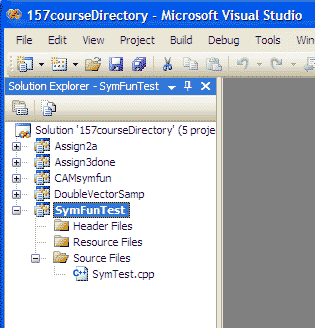
- Invoke the "Add Existing Item" dialog and add the SymTest.cpp file to your project. (screenshot of result).
- Specify the directory containing the CAMsymbolicFunction class headers as an additional include path. This requires
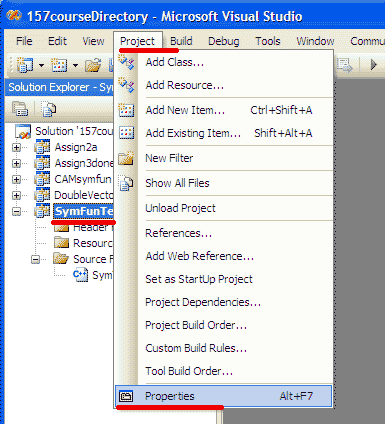
- Bringing up the project properties dialog (screenshot).
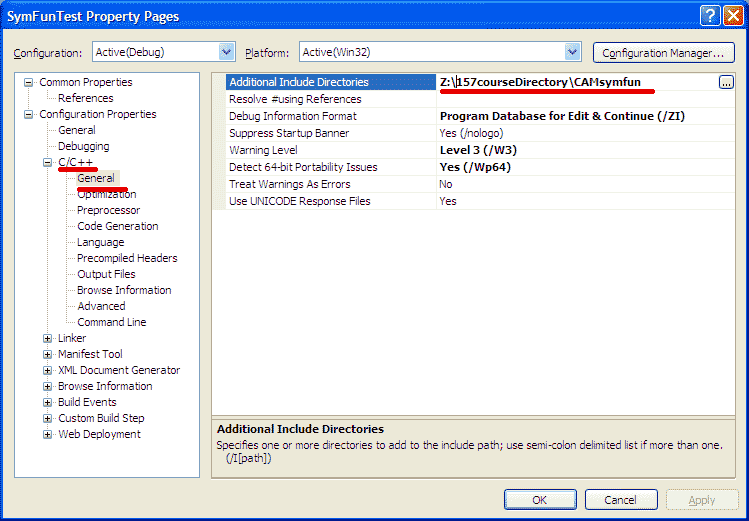
- Specifying the path to the CAMsymfun directory in the ConfigurationProperties/C/C++/General/Additional Include Directories field (screenshot).
Note: Adding the required header files to your project does not indicate to the compiler where the header files are.
- Specify the directories containing additional libraries to be linked to the executable
- Bring up the project properties dialog (screenshot).
- Specify the path to the directory containing the library in the Linker/General/Additional Library Directories field (screenshot).
- Specify the name of the library to be included as an additional linker input
- Bring up the project properties dialog (screenshot).
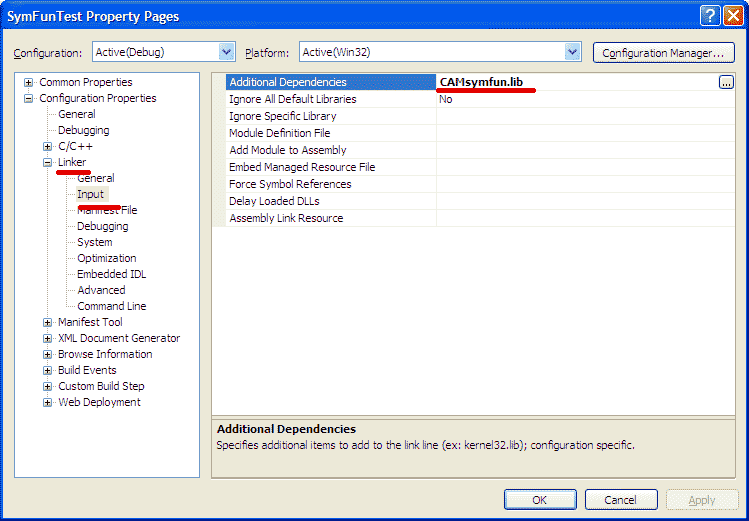
- Specify the name of the CAMsymfun library in the Linker/Input/Additional Dependencies field (screenshot)
- Set the project as the startup project, then build and run.